
Pixel Art Size CalculatorThe right sprite, tile and canvas sizes
The Pixel Art Size Calculator answers the question every new pixel art game starts with: what size should my sprites, tiles and canvas be? Pick a game resolution such as 320 x 180 or 640 x 360 and a tile size from 8 to 48 pixels, and it shows how many tiles fit on screen, how tall a character should be, and how big one art pixel is on a 720p, 1080p, 1440p or 4K screen.
It scales by whole numbers only, which is how pixel art stays crisp, so it also shows the black bars each screen leaves and which resolutions fill all four common screens with none. Starting from a screen instead? Say how many tiles across you want to see, and it lists the sizes that divide the screen exactly.
A live preview draws a meadow from our own 16 x 16 tiles at your sizes, on the whole screen and at real size. The settings come out as lines for Godot's project.godot and values for Unity's Pixel Perfect Camera. Try the demo on this page, no account needed.
A first session
- 1Pick a game resolution, or start from a screen and the number of tiles you want to see.
- 2Pick a tile size and whether the game is top-down or side view.
- 3Check the tiles on screen, the scale and black bars, and the preview.
- 4Download the sizes, or copy the Godot settings into project.godot.
- It exports
- Size sheet (.txt)
- Godot 4 project.godot lines
- Unity Pixels Per Unit and Pixel Perfect Camera values
- Try the demo, then buy it
- Try the demo on our example, no account needed. Your own files and every download come with the tool, bought once.
- Can I use what I make in a commercial game?
- Yes. What you make with the tools is yours to use in your games, commercial ones too, under the Gridwright licence.
Packs that work with it
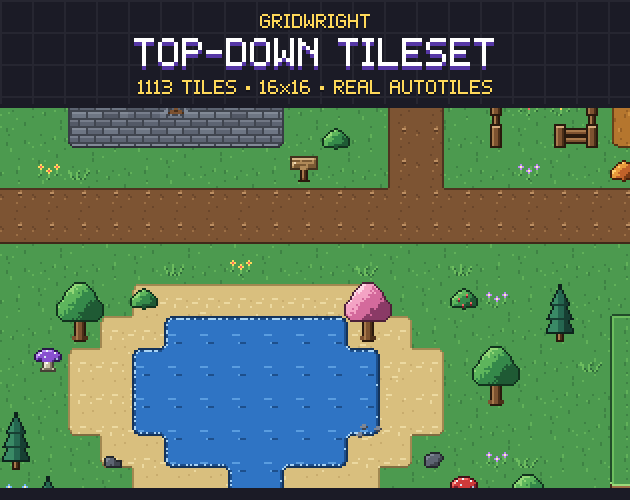
Top-Down Tileset
$9.99Tilesets & worlds · 1113 tiles
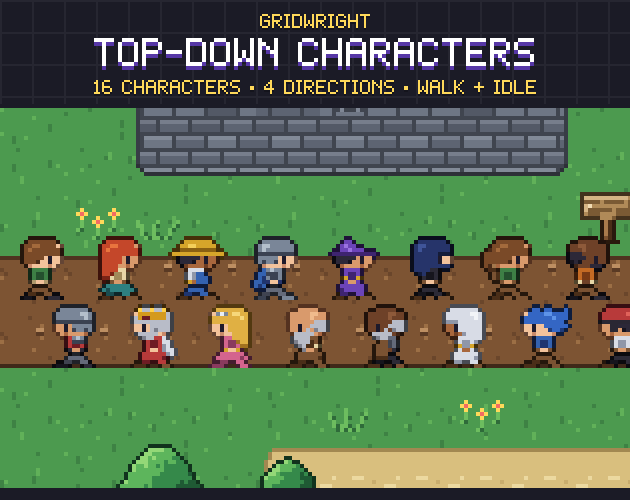
Top-Down Characters
$9.99Characters & creatures · 16 characters, 4 directions
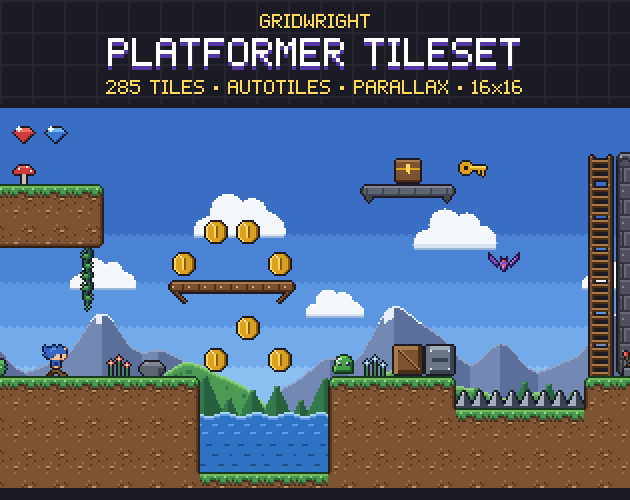
Platformer Tileset
$9.99Tilesets & worlds · 285 pieces
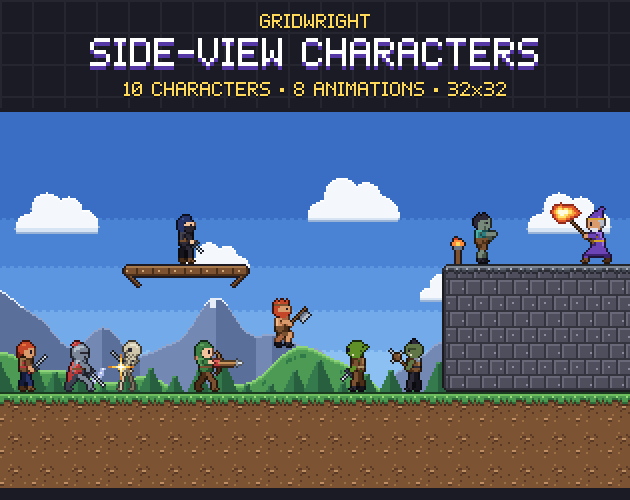
Side-View Characters
$9.99Characters & creatures · 10 characters, animated
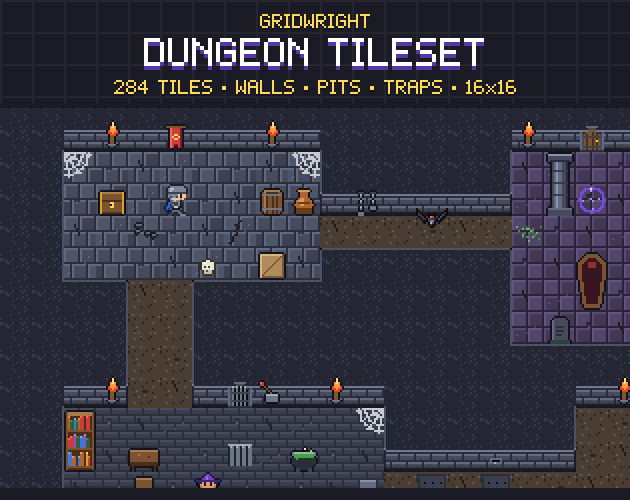
Dungeon Tileset
$9.99Tilesets & worlds · 284 tiles
Guides for this tool
More tools
- Isometric BuilderIsometric maps and scenes
- Tile ModelerLow-poly 3D models and levels from 2D tiles
- Godot Pixel-Perfect SetupCrisp, jitter-free pixel art in Godot 4
- Dungeon & Map GeneratorDungeon, cave and overworld maps
- Autotile BuilderComplete autotile sets from a small template
- Farmer GeneratorFarming RPG characters with every animation
- Hero CreatorSide-view platformer heroes
- Ship BuilderModular pixel spaceships
- Planet GeneratorRotating pixel planets
- PixelatorPixel art from any picture
- Normal MapsNormal maps for 2D lighting
- CRT FilterRetro screen looks for screenshots and trailers
- Sprite Sheet CutterSingle frames from a sprite sheet
- Palette SwapperNew colours for any sprite or sheet
- Sprite Sheet MakerOne sprite sheet from many frames
- Pixel Art UpscalerBigger pixel art without blur
- Pixel Art Background RemoverTransparent sprites from a flat background
- Pixel Palette & Shading Ramp MakerShading ramps and palettes for pixel art
- Pixel Art EditorPixel art drawn in your browser
- Sprite Animation PreviewerYour animation played, checked and lined up
- GIF to Sprite SheetSprite sheets and frames from animated GIFs
- Color Palette ExtractorThe palette of any picture, with pixel counts
- Tileset ExtractorThe tileset of a map picture, and the map to rebuild it
- Sound Effect GeneratorGame sound effects, from retro to sci-fi
- Particle FX BakerLooping pixel-art effects
- 3D Sprite Rotator4, 8 and 16 direction sprite sheets
- Seamless Texture MakerSeamless textures from your photos
- Chiptune ComposerChiptune music and loops for your game
- Pixel Tree & Plant GeneratorPixel-art trees and plants, with wind